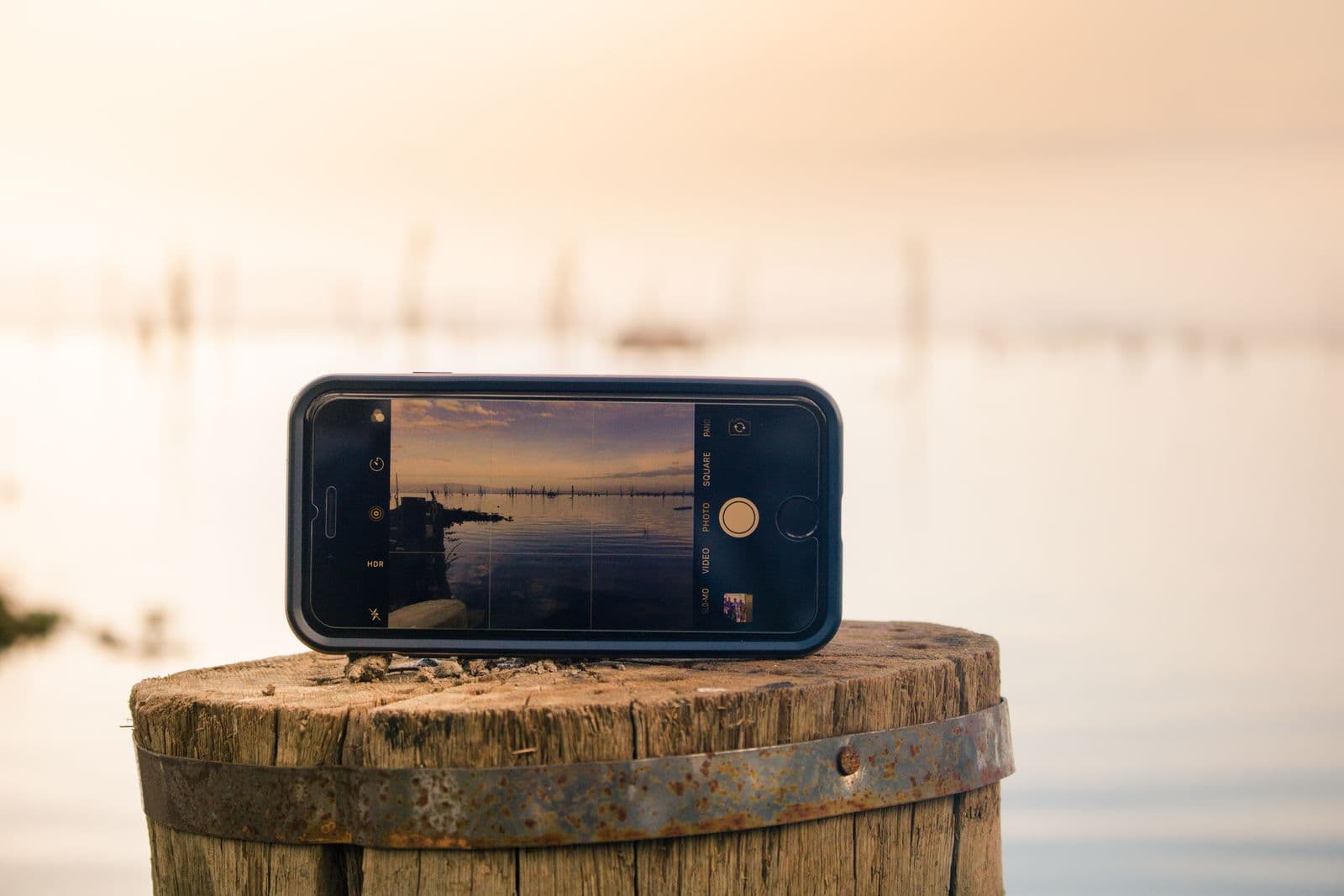
If you're tired of converting photos one at a time, you can stop your iPhone from taking HEIC photos altogether with a single settings change. It takes under a minute and applies to every photo going forward.
The setting that controls it
Your iPhone's camera format is controlled in one place:
Settings → Camera → Formats → select "Most Compatible."
That's it. Once switched, new photos save as JPEG automatically instead of HEIC — no more broken thumbnails on Windows, no more failed uploads, no more converting files one by one before you can use them.
What "High Efficiency" vs. "Most Compatible" actually means
Apple gives you two options here, and the names are fairly self-explanatory once you know what they trade off:
- High Efficiency (the default) — saves photos as HEIC, producing smaller files at the same visual quality, but with less universal compatibility once a photo leaves Apple's devices.
- Most Compatible — saves photos as JPEG, using more storage per photo, but opening reliably everywhere without a conversion step.
Neither is "correct" — it depends on how you use your photos. If you mostly view and share photos within Apple's own apps and devices, HEIC's storage savings has no real downside. If you regularly send photos to Windows users, upload to sites that don't handle HEIC, or just want to skip the "why won't this open" problem entirely, switching to Most Compatible removes the issue at the source.
What happens to your existing HEIC photos
This setting only affects photos taken after you change it — your existing camera roll stays HEIC. If you need to convert photos you've already taken, that's a separate one-time step:
- Drop your existing HEIC photos into the HEIC to JPG converter.
- It converts right in your browser, with no limit on how many files at once.
- Download the JPG versions to use anywhere the originals wouldn't open.
Is there a downside to switching?
The main tradeoff is storage: JPEG files run larger than HEIC at equivalent quality, so your camera roll will fill up faster and iCloud backups will use more space. For most people this is a minor, background concern rather than something you'll actually notice day to day — and it's a small price for never hitting a "this file can't be opened" moment again.
The quick version
One settings change — Camera → Formats → Most Compatible — stops the problem going forward. For photos you've already taken, converting them once clears the backlog.